

Display
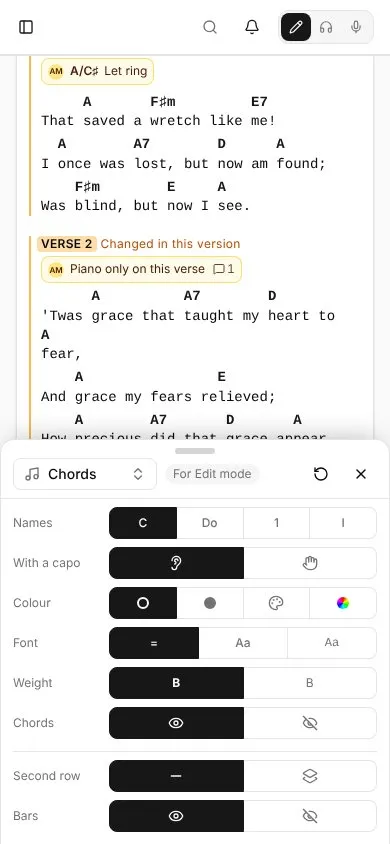
The Display button (sliders) opens a small panel at the bottom of the screen: how the chart reads, changed while you look at it. It’s on a song’s page in Practice, on a set’s songs, in Live’s header (an icon only) and beside the song editor’s preview. On a phone the panel covers only the bottom of the screen, so the chart above stays in view, scrolls and takes taps. On a large screen it’s a column down the right with every section in it at once, and the page moves over to make room. Every change shows on the chart at once. × closes the panel, and so does dragging it down by its handle.
One setting per mode
Section titled “One setting per mode”What you change is kept for the mode you’re in - Edit, Practice or Live - and saved on your account, so every device you sign in on reads the same way. Live can have big text and no diagrams while Practice has guitar diagrams and two columns. The panel says which mode it’s changing (For Live mode).
Anything a mode hasn’t changed comes from your account’s Chart display. ↺ puts the mode back to those settings.
What it changes
Section titled “What it changes”On a phone, the list at the top of the panel picks a section. A large screen shows them all, one under the other; a section’s heading folds it away, and opens it again. The sections you fold stay folded on that device:
-
Grid - while the chord grid shows, the panel opens here: Per row (Auto, as many bars as fit their beats, or 1, 2 or 4), Lyrics (where the grid’s words go: In, Between, Pinned or Off, see The words). The bars row isn’t shown over the grid, which has the same bars. Then Loop bars (with a recording) and Edit bars (if you can edit the song), which close the panel on a phone so you can tap the bars. Sections bar shows or hides the song’s parts in order over the grid (in Live, the same switch as its structure bar in Controls).
-
Words - while the Words view shows, the panel opens here: Size (the words’ own), Layout (Scroll, every line down the page, or Line by line: the line being sung big, the one before faint and the next two - with nothing playing, the arrows step through them), Sections (the parts’ names as a Badge, a Heading, or Hidden), Repeats (Written out, or Once: a part sung again straight after shows once with ×2, else as a reminder of its first words), No words (parts without words With bars, or Hidden), Next (the next part Cued at the bottom, or Hidden), Lines sung (Dimmed or Hidden while following the music), Fill as sung (On or Off), Chords (Small over the words, or Hidden) and Sections bar.
-
Drums - while the Drums view shows, the panel opens here: Words (the line being sung and the next, Shown or Hidden) and Next section (the next part cued at the bottom, Shown or Hidden), and the drum grooves: Drum grooves, Click and Groove (a grid or one line).
-
Metronome - how the beat shows on a song’s page while its music plays (its stems or recording, the metronome started for it, or the leader’s in Sync play): Beat - Pill (only the metronome’s pill, as before), Blocks (a row of blocks in a corner, one per beat), Count (the beat’s number, big, in a corner) or Background (the whole page behind the song and its header, a column per beat lit as it comes); Brightness (how bright a lit column is, 10% to 100%); and Light up - Every beat, Accents, or Accents and medium. The colours follow each beat’s level in the metronome’s pattern: accent orange, medium blue, small grey. The Drums view always has the background, at least 45% bright.
-
Look - how the chart is drawn, for this mode. Plain is the chart as it always was, section names in small capitals; Blocks (Live’s own to start with) puts each section in a card of its colour with its name as a tab on its edge, so the song reads as blocks; Rail draws a bar of its colour down each section’s side; High contrast has heavy words, yellow chords and section names as solid blocks, for a bright stage. The chorus stands out in each: a heavier edge, a wider bar or a frame, and bold words. Then your own changes to it: Colours (By section, Chorus only or None; Plain has none), Current section (Off, Marked - in its colour - or Others dimmed: the section with the line being sung when the music plays, else the one you’re reading or picked in the structure bar) and Chorus again (Written out, or First line: a chorus sung again later shows as its first line, unless it has notes or changes of its own). The sections are see-through, so the metronome’s Background beat shows behind them, and the line being sung and notes show in every look.
-
Text - Lyrics and Chords, each a size (− and +, from 75% to 300%; Live starts at 150%). The chords follow the lyrics’ size until you change theirs; the link button beside them (Chords follow the lyrics’ size) ties them together again. Headings and notes follow the lyrics, and the chords stay over their letters at any size; Live’s own Smaller text and Bigger text buttons change the lyrics and the chords together, a step each, so chords sized apart keep their gap. In Practice and Live you can also pinch the chart: two fingers on a touch screen, a pinch on a trackpad, or Ctrl and the mouse wheel step the same sizes, one at a time, showing the size reached (125%), and keep what’s under your fingers in place. On the Words view it changes the words’ size. A PDF keeps the browser’s own zoom. Font (monospace, where chords line up with each letter, or proportional) and Spacing between lines (Compact, Normal, Relaxed).
-
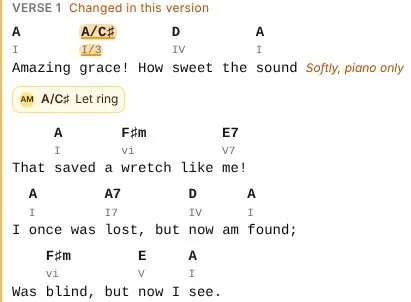
Chords - Names in letters, solfège, Nashville numbers or Roman numerals (see Nashville numbers and chord colours); chords With a capo as they sound or as the shapes to play; their Colour (Accent, Muted, By chord type or A colour of your own), Font (As the lyrics, proportional or monospace) and Weight (Bold or Regular); and Chords shown or hidden (Lyrics only, which hides both rows). Sharps and flats show as ♯ and ♭. Repeats: a section sung again straight after, the same way, shows once with how many times (Once, ×2, “Intro ×4”), or every time (Written out, to put a note on one of them). Bars shows or hides the bars row at the top.
Under them, a Second row of chords, off until you turn it on (Roman numerals the first time), has the same options, plus Where it goes - Under the chords, Over the chords, Beside each chord as a small superscript, or side by side on the same line (Side by side, after or Side by side, before) - the Gap between the two rows, and its Size against the main chords. Letters with the shapes to play makes a capo song readable for everyone: the chords as they sound, the shapes under them, in italics. Turned off, the second row keeps its settings for when you turn it on again. Each chord stays over its letter with both rows, and a second row that would only repeat the first - the capo’s shapes in a song without a capo - isn’t shown. Tapping a chord opens its card with the chord as each row names it.
-
Instrument - Diagrams: None, Guitar, Ukulele or Piano (see Chord diagrams). With a guitar or a ukulele, its Tuning and Left-handed diagrams; with a piano, the Hands. The tuning, left-handed and hands are your account’s, the same in every mode.
Where the diagrams sit, for this mode: Hidden (a tapped chord still shows its diagram), At the top (the song’s chords once each, scrolling away with the chart; fold them to one line), Docked at the bottom, for the section being played (a bar at the bottom of the screen with the chords of the section crossing the upper third of the screen, changing as you scroll or autoscroll; it sits above a docked stem player and Live’s controls, and folds to its handle, remembered on the device) or Beside each section (small diagrams of that section’s chords to the right of its heading; under it on a phone). Tapping a diagram plays it wherever it is.
-
Layout - Columns: Practice and Live show a song in one column (1), so a large screen keeps its right-hand side free, for notes in the margin among other things. Auto flows a long song into as many columns as the screen fits, a section never split between two; 2 or 3 set how many at most. A phone always has one. The editor’s preview flows by default. Follow the music (On or Off): as the stems or the click play, the line being sung is lit and kept in view, in the chart, the Words view and the grid; turn it off when it gets in the way. This device remembers it, for every mode; the recorder’s Follow is the same switch.
-
Notes - how notes show on the chart (see Notes):
- Preset: Standard (below, card, medium, amber), Clean (beside, plain, small, grey), Margin (margin, minimal, medium, amber) or Stage (beside, plain, large, amber, to read from a distance). A preset sets the four settings below; change any of them and it shows as Custom.
- Show: All notes, My notes or No notes.
- Marks: Marked (what each note is on is marked on the chart) or None.
- In Live, New notes: On a tap (someone else’s new note waits behind Notes changed, so nothing moves while you play) or At once.
- Where: Below (under the line or section a note is on), Beside (under its word or chord, the lines moving apart to make room; at the end of its line; beside its section’s name) or Margin (in the free space on the right, level with what it’s on, numbered, with a line leading to it). The margin narrows when room is short; with no room for it at all (a narrow window, or this panel open beside the song), notes go beside what they’re on, and the panel says so.
- Look: Card (border, background and the writer’s picture), Minimal (a light tint) or Plain (just the text).
- Size: Small, Medium or Large.
- Colour: amber, blue, green, pink, violet or grey, also used for the marks.
-
Tracks (Practice, a song with stems) - the Tracks view’s look: Colours (a colour per part, or one colour), Waveform (Filled or Lines) and Time shown (8 s, 16 s, 32 s or the whole Song). Kept on this device, as the buttons above the lanes keep them on a wider screen.
-
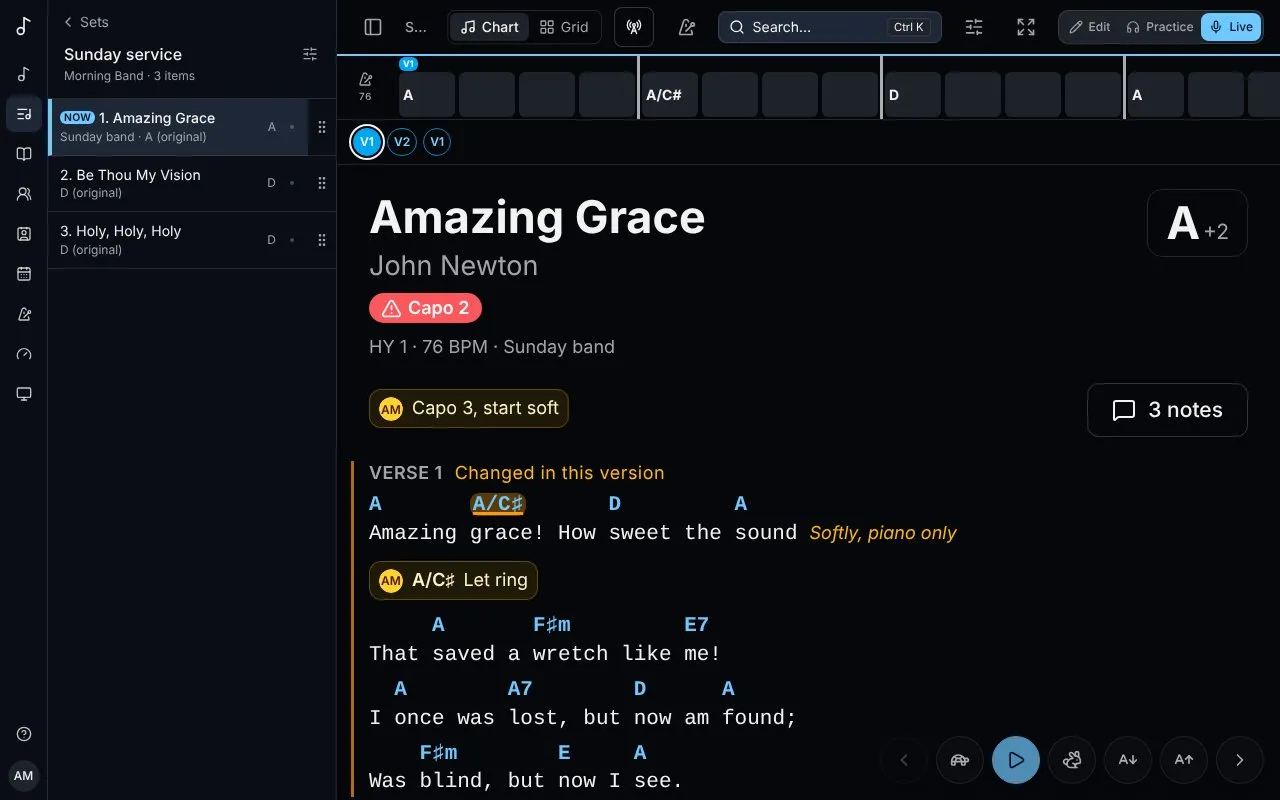
Controls (Live only) - where Live’s buttons are: Footer, a bar along the bottom; Floating, round buttons over the chart, at a Position (Bottom right, Bottom left, Bottom centre or Right edge, below the line you read) and an Opacity from 20% to 100%, fading to a faint outline after a few seconds and back with a touch or a key (a faded button doesn’t take the touch that wakes it); or Hidden, nothing over the chart: the keys, a page-turner pedal and swipes still work, and a tap at the very bottom of the screen brings the buttons up for a moment. Under Show, turn each off or on: Previous / next, Autoscroll, Text size, Metronome, Structure bar and Transpose (the key is then shown without opening the transpose card). See Playing a set live.
The panel opens at the section you used last. Changes are saved a moment after the last one; offline, they’re kept on the device and saved once you’re back online.